PhpStorm tricks ✨
Customize the IDE with templates, plugins and more
PhpStorm is a powerful IDE that helps to boost your development. Here are some tricks to get more out of PhpStorm! ⚡️

Plugins
Plugins extend what the IDE can do.
If you are a Symfony user, probably you use plugins
like Symfony Support
and Twig. In the other hand, if you are a
Laravel one, I bet you use Laravel Idea
and Blade.
However, I recommend you GitToolBox
or String Manipulation in
case you never tried them.
Another recommendation, in case you want to familiarize with the IDE shortcuts
is Key Promoter X.
Although, my favorite so far, which is also not very well-known
is PHP Inspections (EA
Extended). This plugin helps you with architecture related issues, regular expressions, non-optimal, duplicated and
suspicious "if" conditions, performance issues beyond others.
You can check the full list of features on their
GitHub page, this one is a MUST.
Code Style
PHP is a programming language where everybody can write the code as they wish, in order to unify the
industry, PSRs was born.
That is the reason we can find standards for Loggering (PSR-3),
Event Dispatcher (PSR-14),
and even for the Clock (PSR-20). You can check the
full list of all available PSRs here.
One of the most popular PSRs is concerning the Code Style, that is, it defines things like:
- Should I use tabs or spaces?
- Where should I place the brackets in a method? And in a conditional/loop?
- Are the parenthesis required when instantiating a class with empty constructor?
During the last years, due to the big and fast changes the language experienced, PSR-2 was quickly replaced by PSR-12. However, the language continues evolving very fast, and to avoid creating a new PSR each year, a new standard called PER was introduced.
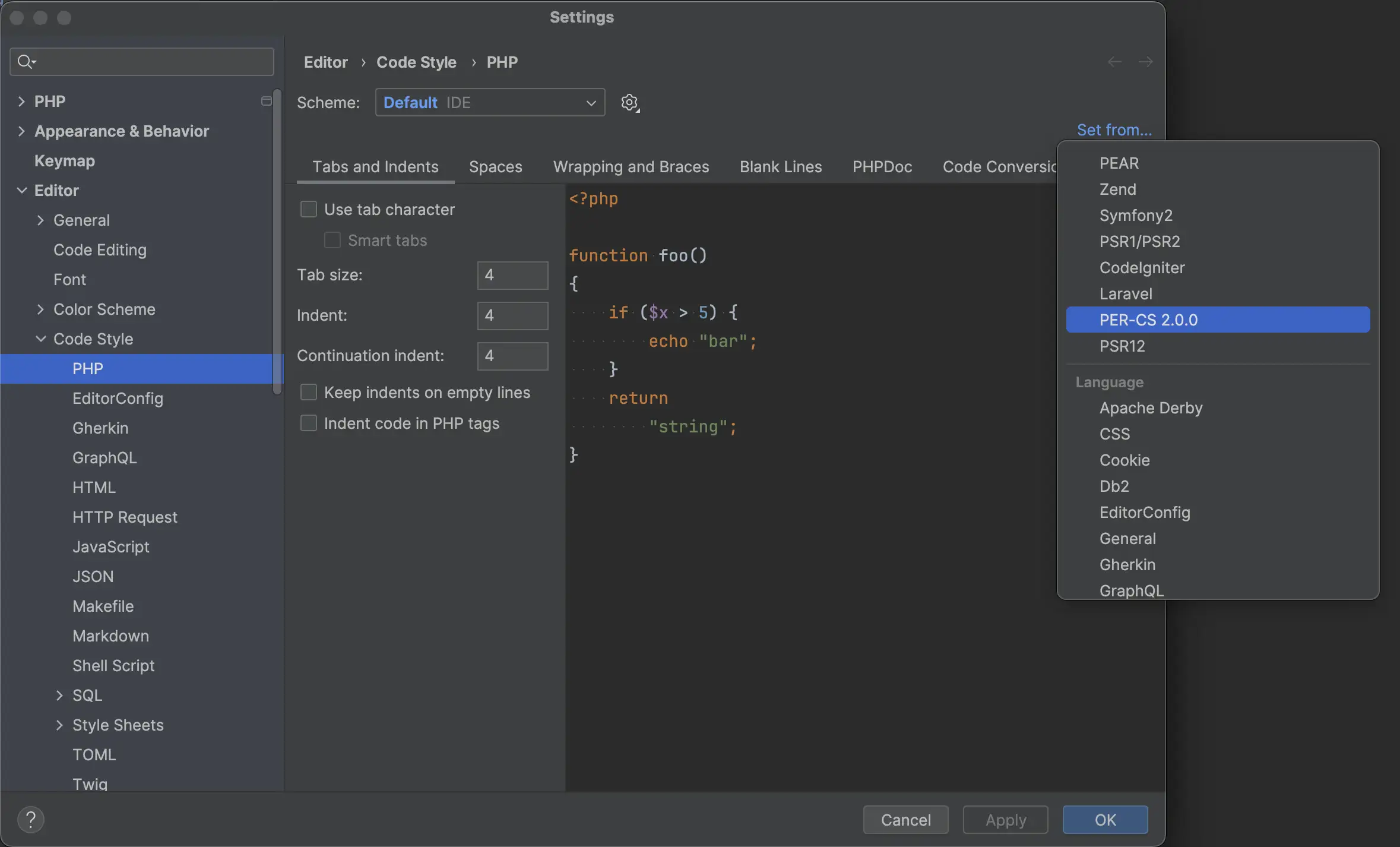
To define PER standard by default, go to the following path and select PER-CS.
Settings ➔ Editor ➔ Code Style ➔ PHP ➔ "Set from..." ➔ PER-CS
Live Templates
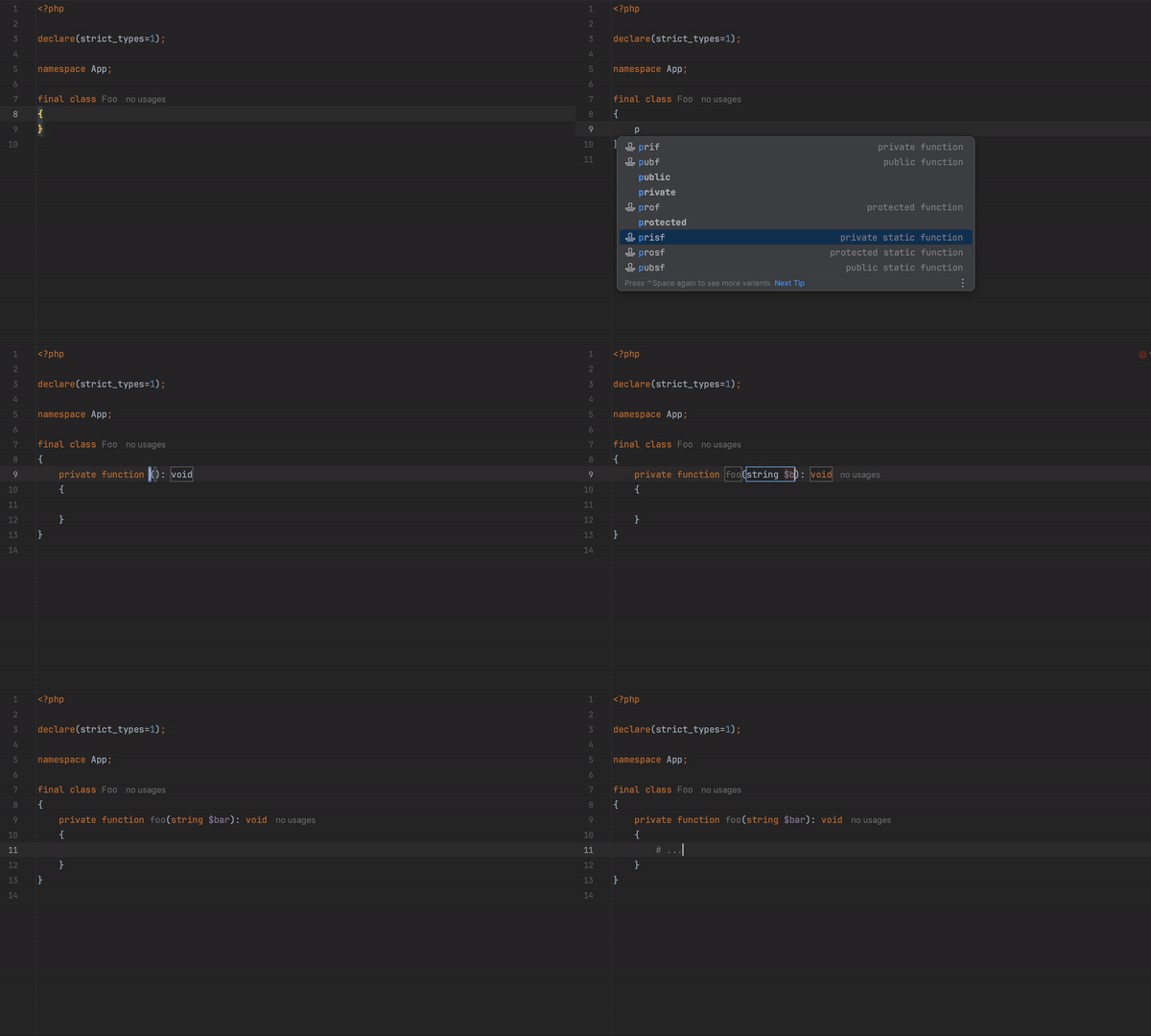
Live Templates are snippets of code that are very used, and you can write them in a few characters.
PhpStorm brings some live templates, for example, if we type prif, the generated code will be:
private function ░()
{

}
There is a live template for all function combinations: prif, prisf, prof, prosf, pubf & pubsf.
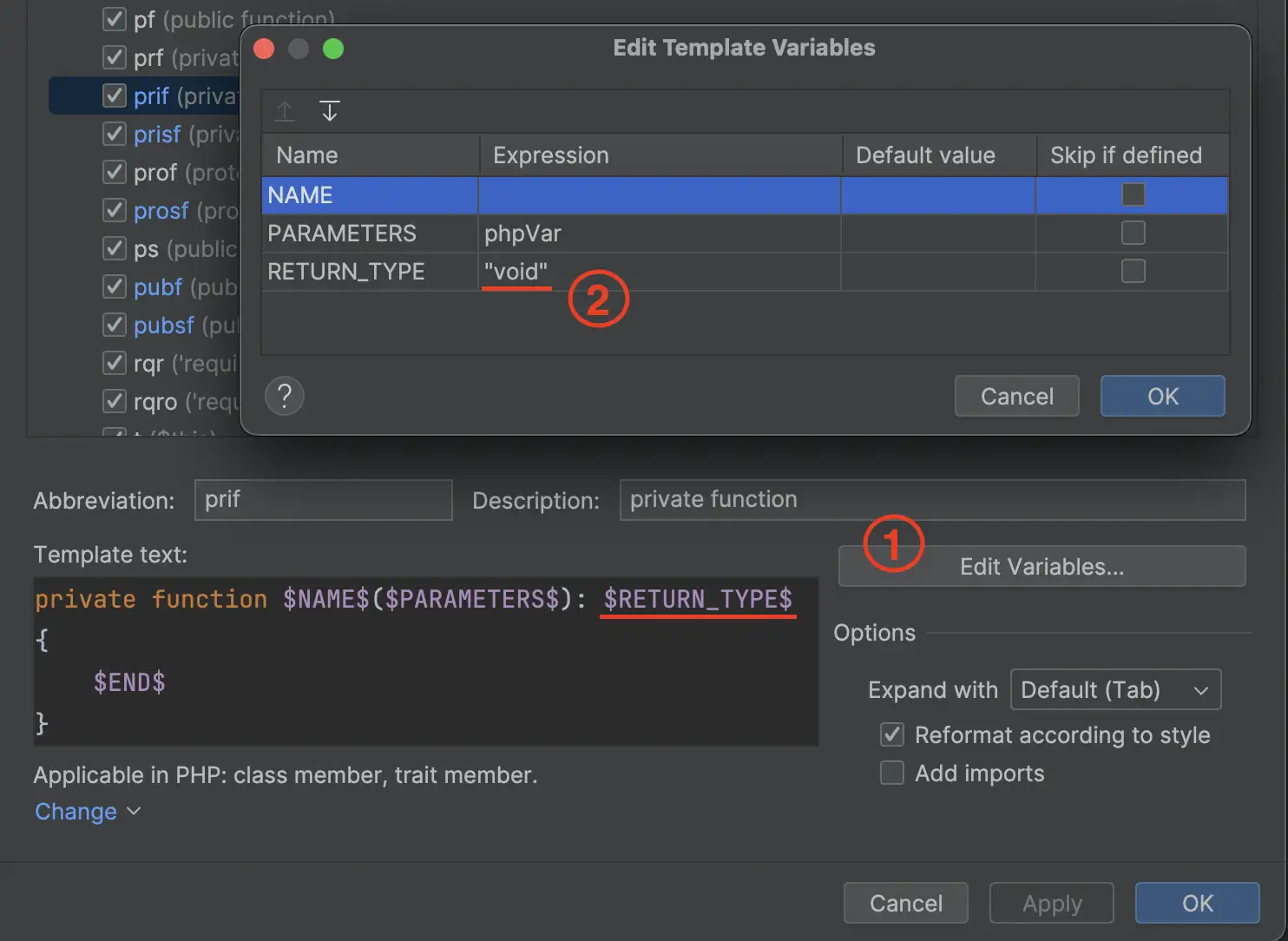
It is possible to enhance the auto-completion with a default : void return type as follows.
Go to Editor ➔ Live Templates and adjust each template with the $RETURN_TYPE$ variable.
private function $NAME$($PARAMETERS$): $RETURN_TYPE$ {
    $END$
}
Finally, press on Edit variables and insert "void" (with quotes) on RETURN_TYPE field.
File and Code Templates
The scaffolding you get when you create a new file in PhpStorm is also editable.
If you are into strict_types and final classes by default, you are in luck! 🎉
To change this, go to Editor ➔ File and Code Templates and update all PHP templates.
You can copy-paste the following code snippets into its own category (notice the spaces).
PHP File
<?php
declare(strict_types=1);
#parse("PHP File Header.php")
PHP Class
<?php
declare(strict_types=1);
#parse("PHP File Header.php")

#if (${NAMESPACE})
namespace ${NAMESPACE};

#end
final class ${NAME} {

}
PHP Interface
<?php
declare(strict_types=1);
#parse("PHP File Header.php")

#if (${NAMESPACE})
namespace ${NAMESPACE};

#end
interface ${NAME} {

}
PHP Trait
<?php
declare(strict_types=1);
#parse("PHP File Header.php")

#if (${NAMESPACE})
namespace ${NAMESPACE};

#end
trait ${NAME} {

}
PHP Enum
<?php
declare(strict_types=1);
#parse("PHP File Header.php")

#if (${NAMESPACE})
namespace ${NAMESPACE};

#end
enum ${NAME}#if (${BACKED_TYPE}) : ${BACKED_TYPE} #end{

}
PHP Test
<?php
declare(strict_types=1);
#parse("PHP File Header.php")

#if (${NAMESPACE})
namespace ${NAMESPACE};
#end

#if (${TESTED_NAME} && ${NAMESPACE} && !${TESTED_NAMESPACE})
use ${TESTED_NAME};
#elseif (${TESTED_NAME} && ${TESTED_NAMESPACE} && ${NAMESPACE} != ${TESTED_NAMESPACE})
use ${TESTED_NAMESPACE}\\${TESTED_NAME};
#end

final class ${NAME} extends#if(${NAMESPACE}) \PHPUnit_Framework_TestCase #else PHPUnit_Framework_TestCase #end{

}
PHP Unit 6 Test
<?php
declare(strict_types=1);
#parse("PHP File Header.php")

#if (${NAMESPACE})
namespace ${NAMESPACE};
#end

#if (${TESTED_NAME} && ${NAMESPACE} && !${TESTED_NAMESPACE})
use ${TESTED_NAME};
#elseif (${TESTED_NAME} && ${TESTED_NAMESPACE} && ${NAMESPACE} != ${TESTED_NAMESPACE})
use ${TESTED_NAMESPACE}\\${TESTED_NAME};
#end
use PHPUnit\Framework\TestCase;

final class ${NAME} extends TestCase {

}
PHPSpec Specification
<?php
declare(strict_types=1);
#parse("PHP File Header.php")

#if (${NAMESPACE})
namespace ${NAMESPACE};
#end

#if (${TESTED_NAME} && ${NAMESPACE} && !${TESTED_NAMESPACE})
use ${TESTED_NAME};
#elseif (${TESTED_NAME} && ${TESTED_NAMESPACE} && ${NAMESPACE} != ${TESTED_NAMESPACE})
use ${TESTED_NAMESPACE}\\${TESTED_NAME};
#end
use PhpSpec\ObjectBehavior;

final class ${NAME} extends ObjectBehavior {

}
Codeception Unit Test
<?php
declare(strict_types=1);
#parse("PHP File Header.php")

#if (${NAMESPACE})
namespace ${NAMESPACE};

#end
#if (${TESTED_NAME} && ${NAMESPACE} && !${TESTED_NAMESPACE})
use ${TESTED_NAME};
#elseif (${TESTED_NAME} && ${TESTED_NAMESPACE} && ${NAMESPACE} != ${TESTED_NAMESPACE})
use ${TESTED_NAMESPACE}\\${TESTED_NAME};
#end

final class ${NAME} extends \Codeception\Test\Unit {

}
Codeception Functional Test
<?php
declare(strict_types=1);
#parse("PHP File Header.php")

#if (${NAMESPACE})
namespace ${NAMESPACE};

#end
#if (${TESTED_NAME} && ${NAMESPACE} && !${TESTED_NAMESPACE})
use ${TESTED_NAME};
#elseif (${TESTED_NAME} && ${TESTED_NAMESPACE} && ${NAMESPACE} != ${TESTED_NAMESPACE})
use ${TESTED_NAMESPACE}\\${TESTED_NAME};
#end

final class ${NAME} {

}
Shortcuts
It is very important to learn the IDE shortcuts, that will bring you confidence and will help you to be more productive,
in case you don't know them, definitely you SHOULD.
I would like to remind the plugin Key Promoter X that I mentioned before.
PhpStorm also brings a PDF file with the most important shortcuts, go to Help ➔ Keyboard Shortcuts PDF to download it.
List of most important shortcuts:
Windows/Linux
Ctrl + Shift + S= Open SettingsAlt + 1= Display/hide Project barAlt (twice)= Search in the whole project (class names, files, symbols, actions...)Ctrl + N= Search by class name (similar toAlt (twice)but only for class names)Alt + →/←= Move to left/right tabCtrl + G= Go to line X:YCtrl + B= Navigate in/out (similar toCtrl + Click)Ctrl + Y= Delete current lineCtrl + C/V (without selection)= Copy/Paste full lineCtrl + Shift + V= Paste with historyCtrl + E= Display recent filesCtrl + Shift + E= Display last 3 recent filesCtrl + Shift + F= Find in path (search words in the whole project)Ctrl + Shift + L= Reformat CodeCtrl + Shift + ↑/↓= Moves the current code blockCtrl + Shift + M= Go to start/end of current bracketsCtrl + Shift + T= Open test from specific class (and vice-versa)Shift + Alt + Click= Multiple cursorCtrl (twice keeping it pushed) + arrows= Multiple cursor from adjacent linesCtrl + W= Select graduallyAlt + J= Select next occurrence similar to current oneCtrl + Alt + F/M/C/V/P= Refactor Function/Method/Constant/Variable/ParameterCtrl + Alt + N= Inline refactorCtrl + Insert= Contextual menu to override methods, generate getters, setters...Ctrl + Shift + F10: Run the scope where the caret isCtrl + Alt + Enter= Jump to next line (adds ";" automatically if needed)
Mac
⌘ + ,= Open Settings⌘ + 1= Display/hide project bar⇧ (twice)= Search in the whole project (class names, files, symbols, actions...)⌘ + O= Search by class name (similar to⇧ (twice)but only for class names)⌃ + →/←= Move to left/right tab⌘ + L= Go to line X:Y⌘ + B= Navigate in/out (similar toCtrl + Click)⌘ + ⌫= Delete current line⌘ + C/V (without selection)= Copy/Paste full line⌘ + ⇧ + V= Paste with history⌘ + E= Display recent files⌘ + ⇧ + E= Display last 3 recent files⌘ + ⇧ + F= Find in path (search words in the whole project)⌥ + ⌘ + L= Reformat Code⌘ + ⇧ + ↑/↓= Moves the current code block⌘ + ⇧ + T= Open test from specific class (and vice-versa)⌥ + ⌘ + ⇧ + Clickor = Multiple cursor⌘ (twice keeping it pushed) + arrows= Multiple cursor from adjacent lines⌥ + ↑= Select gradually⌥ + ⌘ + F/M/C/V/P= Refactor Function/Method/Constant/Variable/Parameter⌥ + ⌘ + N= Inline refactor⌘ + N= Contextual menu to override methods, generate getters, setters...⇧ + ⌃ + R= Run the scope where the caret is⌘ + ⇧ + Enter= Jump to next line (adds ";" automatically if needed)
In case the shortcut
⌃ + →/←changes between Desktops in Mac, you can disable it inSettings ➔ Keyboard ➔ Keyboard Shortcuts... ➔ Mission Control.
Add Custom shortcuts
We just saw the Ctrl + 1/⌘ + 1 shortcut displays/hides the project bar, it is also very handy to set
the shortcut Ctrl + Alt + 1/⌘ + ⇧ + 1 to display and select in the project bar the current file.
This way, we don't need to use the mouse at all, we can navigate between tabs with only the keyboard.
To set this new combination, in Settings ➔ Keymap search by Select File in Project View and Add Keyboard Shortcut.
It is also very handy to add shortcuts to Split and Move Right or Split and Move Down with Ctrl + I/-/⌃ + I/-.